Melyo Player plays the playlist you get from your IPTV provider. This guide shows how to add it in under a minute — on a phone, Android TV or Fire TV.
Melyo Player is a player only: it does not provide any channels or content. You add your own playlist (M3U or Xtream Codes) from your provider.
What you need
- Melyo Player installed (download it here).
- Your provider's details: an Xtream Codes server, username and password — or an M3U link.
Steps
- Open Settings
Open the Settings tab (on TV: Settings in the side menu). - Go to Manage Playlists
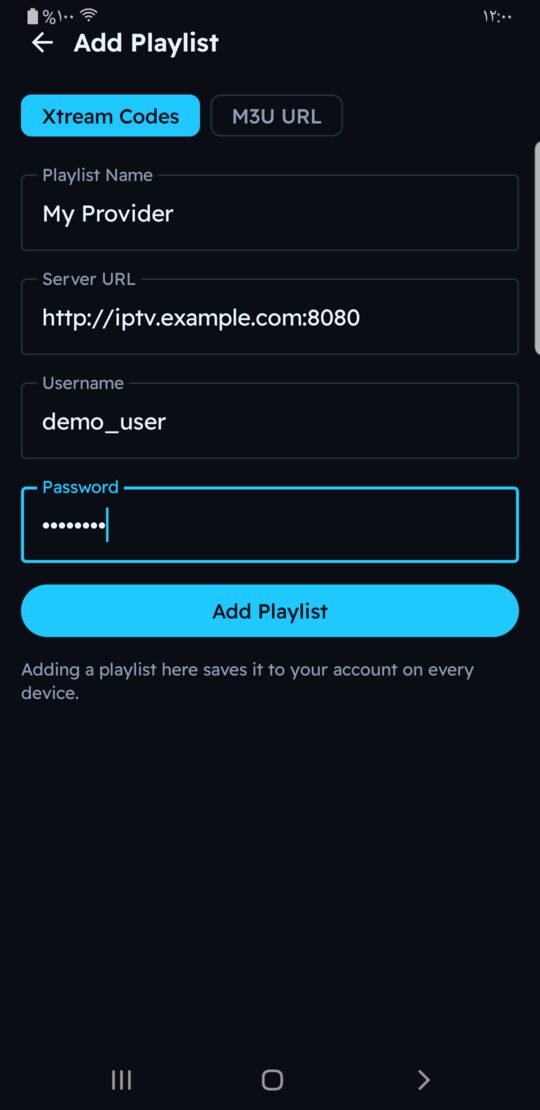
Choose "Manage Playlists", then "+ Add Playlist". - Choose the type
Pick "Xtream Codes" if your provider gave you a server, username and password, or "M3U URL" if you got one link. - Enter the details
Type a name for the playlist and the details from your provider. Tip: paste a whole get.php link into the server field and the fields fill themselves. - Add and watch
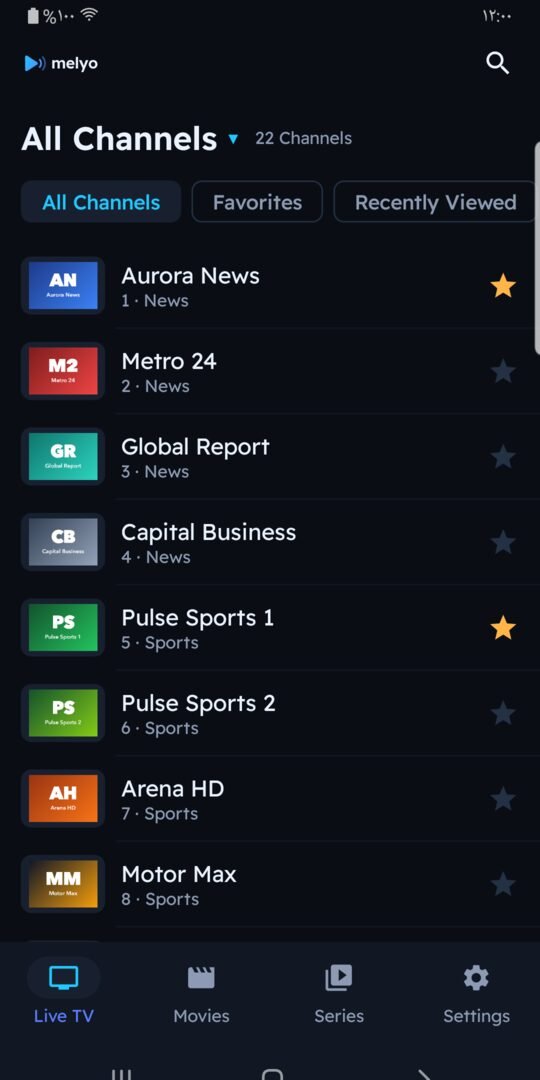
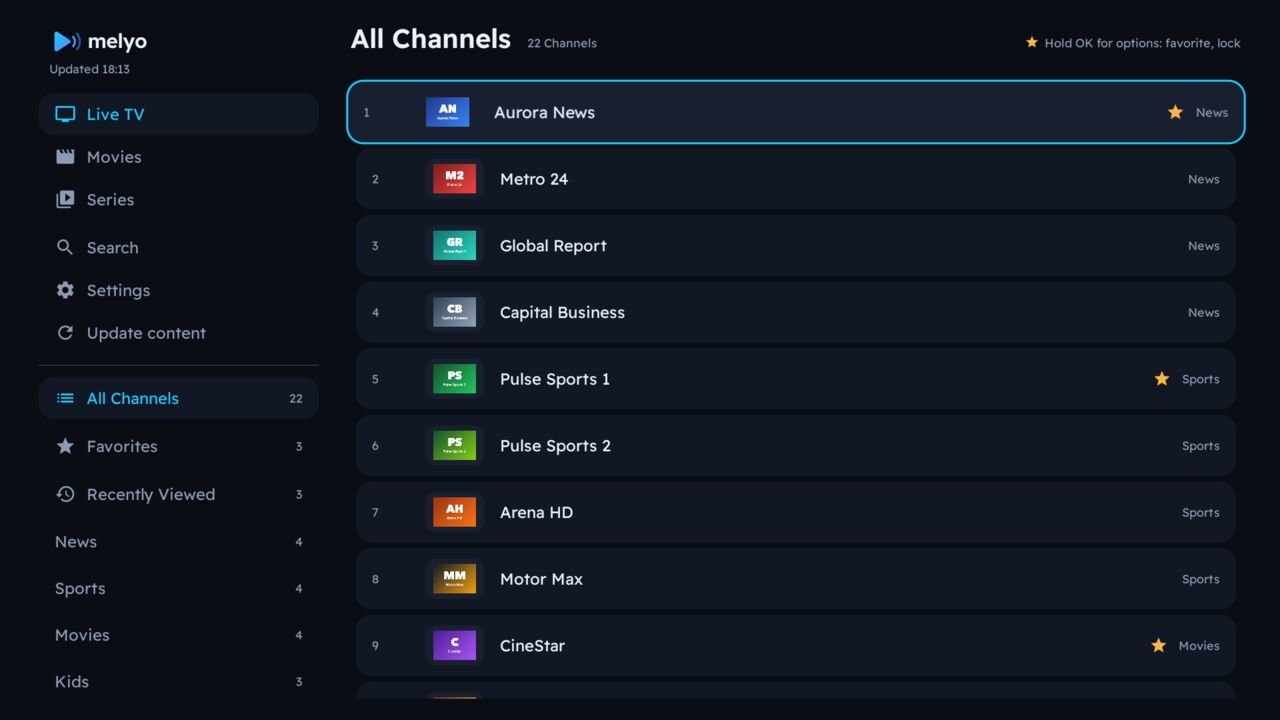
Press "Add Playlist". Channels, movies and series appear in their sections, in your provider's order.
Good to know
- Playlists are saved to your Melyo account, and you can also manage them from your account on melyo.app.
- Your provider's subscription end date and connection limit show under Manage Playlists.
- To load new channels from your provider, use Update content.