Some channels use audio or video formats that one engine can't decode on your device. Melyo Player has two engines — ExoPlayer and VLC — and you can switch per channel.
Steps
- Open the panel
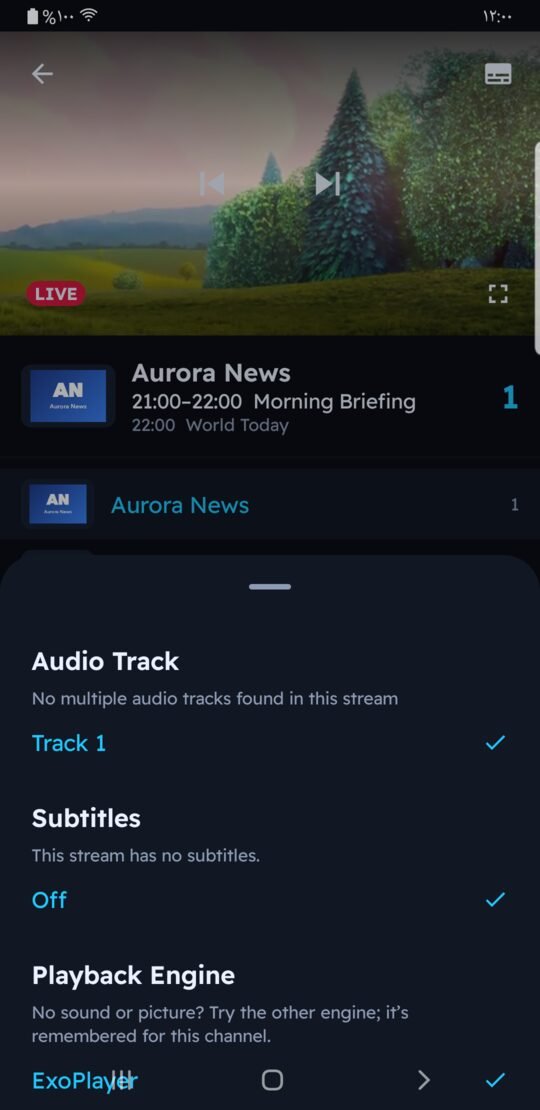
While the channel plays: on a phone tap the picture, then the subtitles icon; on TV press Right (Left in Arabic) or Menu. - Check the audio track
If the channel has several audio tracks, pick another one under "Audio Track". - Switch the engine
Under "Playback Engine" choose VLC (or ExoPlayer if VLC is active). The channel restarts with the other engine. - It is remembered
Melyo Player remembers the engine for this channel, so next time it plays right away.
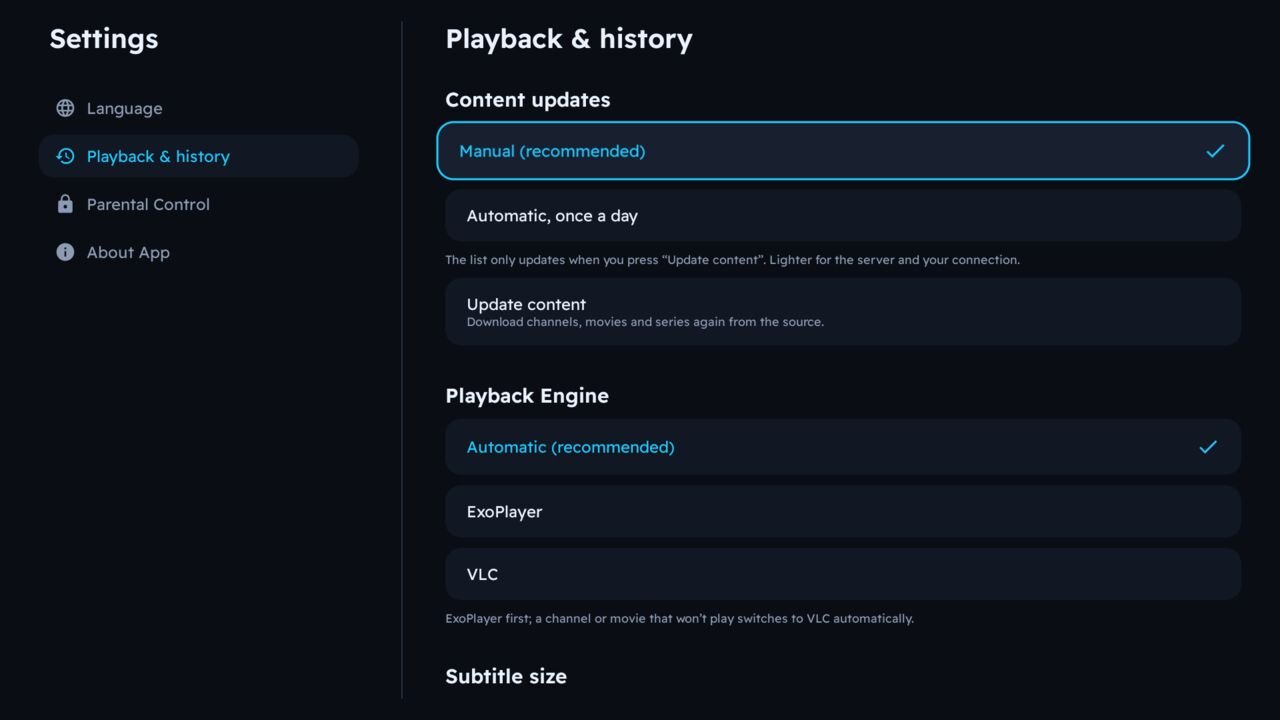
Automatic mode
With Automatic (recommended) Melyo Player starts with ExoPlayer and switches to VLC by itself when a channel won't play or plays without sound.
Still not working?
- "Channel not available" or the stream stops: your provider may limit how many devices watch at the same time — close the playlist on other devices.
- Try Update content in case the provider changed the channel's link.
- If no channel works, check your subscription date under Manage Playlists.