Parental control hides locked content from every list, search and "All channels" until the PIN is entered.
Steps
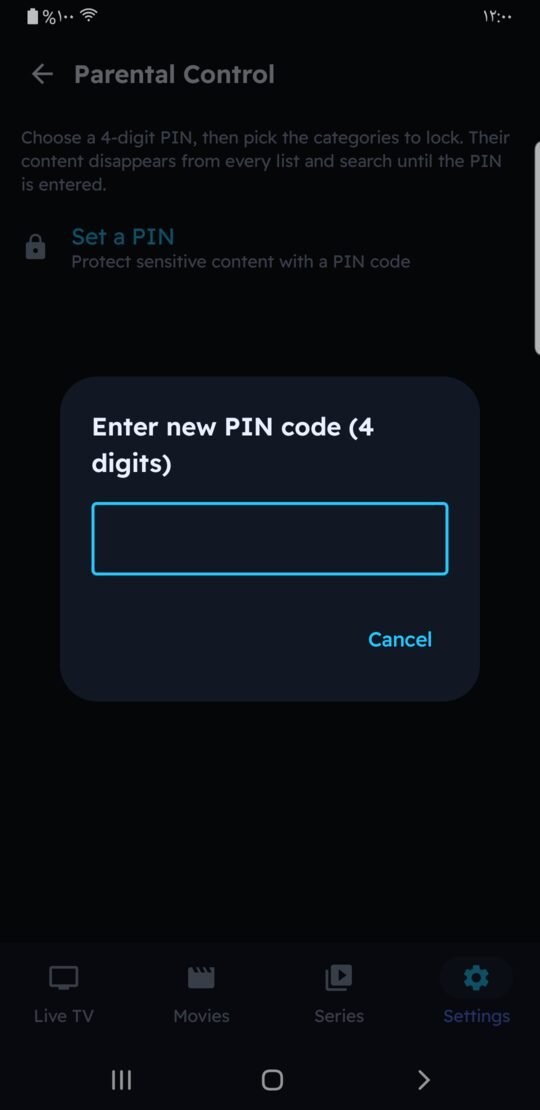
- Set a PIN
Settings › Parental Control › Set a PIN, and enter a 4-digit PIN twice. Adult-looking categories are locked automatically. - Lock categories
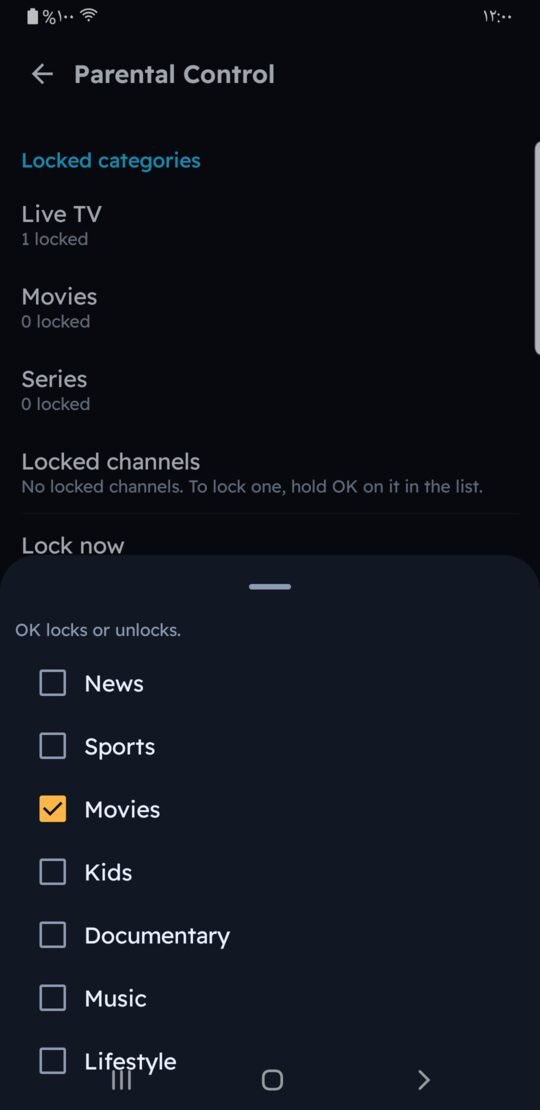
Under "Locked categories" choose Live TV, Movies or Series and tick the categories to lock. - Lock a single channel
In the channel list, long-press a channel (hold OK on TV) and choose "Lock this channel". - Unlock when needed
Open a locked category and enter the PIN. Everything stays unlocked until you leave the app.

Good to know
- "Lock now" locks everything again right away.
- The PIN is stored on the device, protected (not in plain text).
- Forgot the PIN? Contact us through the contact page with your Device ID.